Six steps, with the real screens
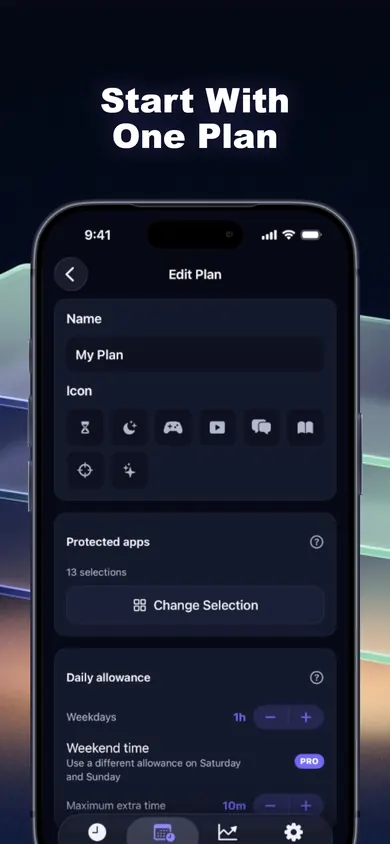
Pick the apps that eat the evening
Use Apple's private picker to choose apps, categories or websites. Time Debt never sees their names. Start with the three you open without deciding to.
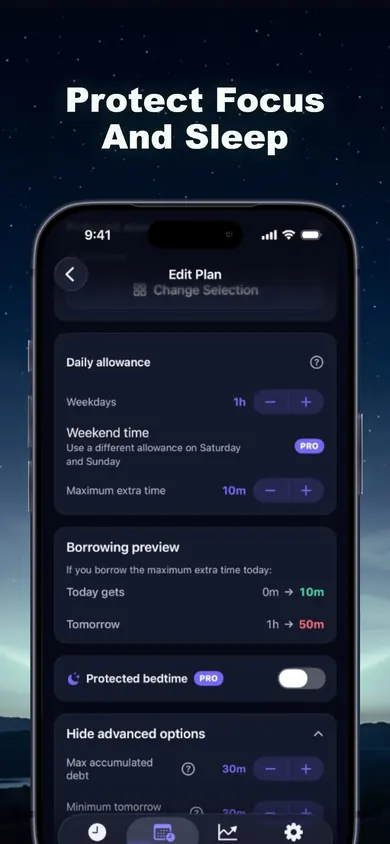
Set an allowance you would actually keep
One hour on weekdays, different on weekends if you like. Then set the maximum you can borrow in a day. The preview shows the trade before you ever need it: today 1h → 1h10m, tomorrow 1h → 50m.
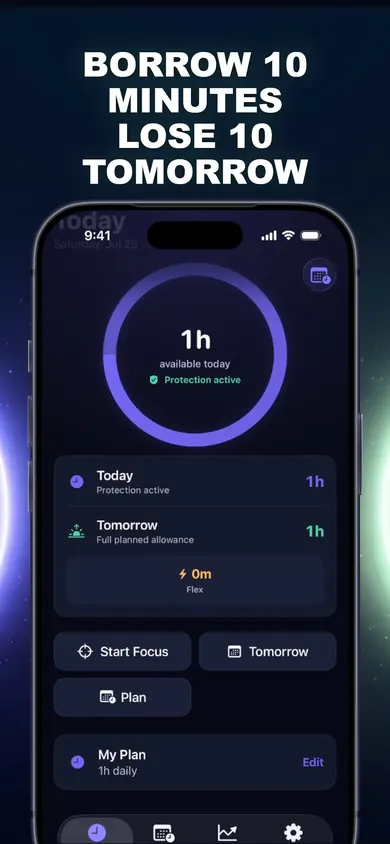
Let the shield do its job
When the hour runs out, a calm shield covers the apps. Two choices: stop for today, or open Time Debt and borrow with the full picture on screen.
Borrow on purpose, not by reflex
Five, ten or fifteen minutes, or a custom amount within your cap. Today and tomorrow are shown side by side. Nothing happens until you confirm. That pause is the whole product.
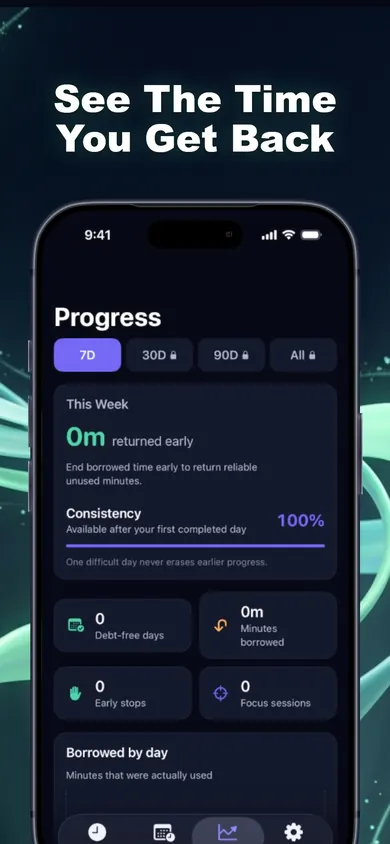
Watch repayment happen, then stop early for credit
Tomorrow starts shorter by the borrowed minutes, once. End a borrowed session early and the unused minutes return as Flex. History labels everything plainly and never frames a day as failure.
Keep the exit, so you keep the app
Emergency access removes every shield until tomorrow, free, any time. A commitment device you can leave is one you will still have on day thirty. It changes nothing in iOS Settings or a Family Sharing organizer's limits.
Questions from people who tap Ignore Limit
Why do I keep ignoring my Screen Time limit?
Because the override is free. When the iOS limit screen appears, 'Ignore Limit' adds one minute, fifteen minutes or the rest of the day with no consequence, so the decision is made by whichever part of you wants the app right now. Time Debt keeps the limit but prices the override: extra minutes today come off tomorrow's allowance, and you see both numbers before you confirm.
Does Time Debt replace Apple's Screen Time?
No. It is built on Apple's Screen Time system and uses Apple's private picker and shields. It never sees app names or content; Apple provides anonymous tokens. It does not change limits set in iOS Settings or by a Family Sharing organizer.
What happens when I run out of time?
A calm shield covers the selected apps. You can stop for today, or open Time Debt and borrow 5, 10 or 15 minutes (or a custom amount within your cap) with tomorrow's adjusted allowance shown next to today's.
How is borrowed time repaid?
Automatically, once, from tomorrow's allowance. No interest, nothing compounds, and tomorrow never drops below the minimum you set. End a borrowed session early and the unused minutes come back as Flex Minutes.
Can I get out in an emergency?
Always. Remove every Time Debt shield until tomorrow at any time, at no cost. On your own iPhone you can also withdraw Screen Time permission in Settings.
What is free?
The core plan: one full plan with real blocking, borrowing, automatic repayment, 7-day history and emergency access. Pro adds multiple plans, custom schedules, multi-day repayment, longer history and reports, guided programs and expanded family tools. Price and trial terms are shown in the app before purchase.
How it works, in three lines
Allowance
A daily limit for the apps you picked, with weekday and weekend versions. When it runs out, the shield.
Loan
Borrow a fixed amount from tomorrow, see both days before confirming, stop early for Flex Minutes.
Repayment
Automatic, once, no interest, never below your minimum. Protected bedtime hours can cross midnight and can forbid borrowing.
Honest limits
- It is a voluntary commitment tool, not medical or psychological treatment. On your own iPhone, Screen Time permission can be withdrawn in Settings, and emergency access is always free; if you want something you cannot escape, this is not it.
- Family tools are on one device. Requests and parent approvals happen on the same iPhone, protected by Face ID, Touch ID or passcode. There is no remote monitoring from a parent's phone.
- Core is one plan. Multiple plans, custom schedules, multi-day repayment, longer history, reports and guided programs are Pro, a subscription managed through Apple with price and trial terms shown before purchase.
- It cannot see what you do inside an app. Apple's tokens are anonymous by design, which is why it is private and also why it cannot, say, allow messaging but block the feed inside one app.
Open Time Debt in the App Store
Real blocking on Apple's Screen Time system, borrowing you can see the cost of, repayment that happens once. Core plan free, no account, no ads.
Sources
- Apple Support, Use Screen Time on your iPhone or iPad (app limits and the Ignore Limit option), read 4 November 2026.
- Time Debt: Screen Time, App Store listing, version 1.2, read 4 November 2026. Feature and Core/Pro statements come from this text; the "hard-lock blockers" column describes a category, not a named product.