Screen Time App Limits
- At the moment you want the app
- A limit screen with an ignore option, or a passcode prompt if one is set
- Who holds the key
- You, unless you give the passcode away
- Cost
- Free, built in
- Best for
- Awareness; a partner-held passcode
How often do you tap past a limit, and for how long? Nothing is sent anywhere.
Arithmetic, not a promise. The second figure assumes a Pass is the same length as your Ignore Limit visit; in the app you pick 5, 10 or 15 minutes and it relocks by itself.
If you have typed “iphone screen time limits don’t work” into a search box at 11 pm, the problem is not the limit. It is that the limit asks you to stop and then offers a button that says you do not have to. Four methods compared, honestly, including ours.
The question is always the same: what happens at the moment you want the app? Swipe sideways.
9:47 pmThumb on the icon before the thought arrives. The shield comes up: PROTECTED. You chose to protect this app. Two buttons.
9:47 pm, stillGo Back. One Focus Save. The app records the choice and nothing else; it does not guess what you did next, which was make tea.
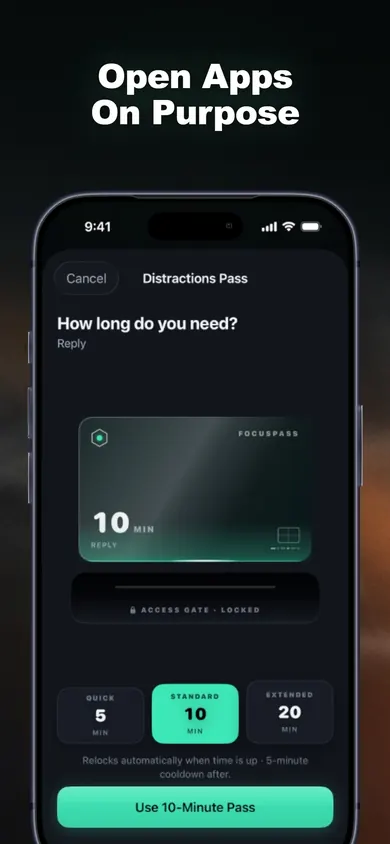
10:20 pmYou actually need it: a reply to a friend. Use a Pass, 5 minutes, reason: Reply. The relock is already scheduled before the app opens.
10:25 pmLocked again, on its own. You did not have to decide to stop, which was always the hard part.
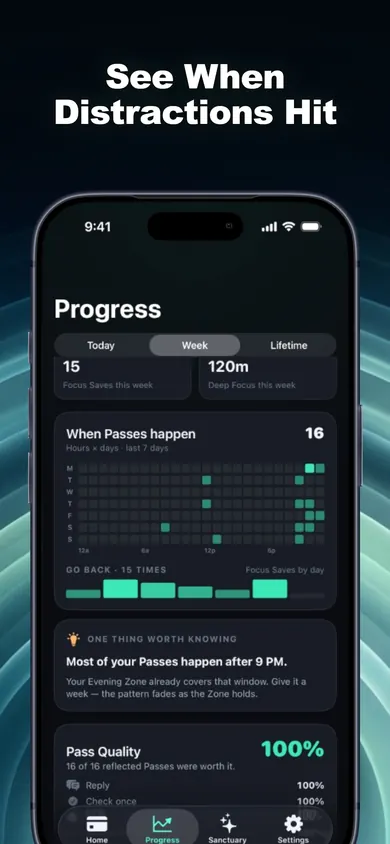
SundayWeekly Review: most of your Passes happen after 9 pm. The app offers an Evening Zone. You accept. That is the whole method.
Free is useful forever, per the listing: shields, Passes, relocking, one Wallet, one Zone, one Deep Focus a day. More of each is Pro, monthly or yearly.
On purpose. Turn Off All Protection is never locked behind anything. If you want a lock you cannot open, this is not it; a partner-held Screen Time passcode is.
Focus Saves count a choice, not minutes saved. We have no study showing FocusPass reduces your usage, and the listing invents no minutes.
Built on Screen Time frameworks; blocking happens on the iPhone (the Watch app shows status). If a parent or organisation manages Screen Time, their settings win.
Because the limit screen offers a way past it, and you know your own passcode. Apple's forums have threads going back years asking how to remove the extra-minute and ignore options. The limit is a reminder, not a wall, unless someone else holds the passcode.
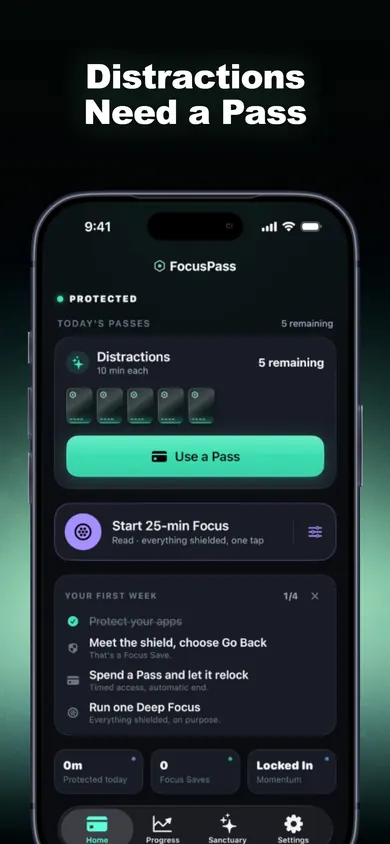
Per the listing: opening a protected app shows a native shield with two choices, Go Back or Use a Pass. A Pass is a length you pick (for example 5, 10 or 15 minutes) with an optional reason, and the relock is scheduled with iOS before the app opens, so protection resumes when the Pass ends even if FocusPass is closed.
Yes, deliberately: Turn Off All Protection always works, by design. What you cannot do is cheat it by accident. The listing says Pro never sells a way around your own rules, and Task Access is capped at 3 minutes so it cannot become a loop.
With it. FocusPass uses Apple's Screen Time frameworks and picker; Apple keeps your app selections opaque even to FocusPass. If a parent or organisation manages Screen Time, their settings come first.
Native shields, Go Back and Focus Saves, timed Passes, automatic relocking, one Wallet, one Focus Zone, one Deep Focus session a day, 7-day insights, Momentum and missions. Pro is a monthly or yearly subscription for more Wallets, Zones, Free Windows, Task Access, Adaptive Resistance, unlimited Deep Focus and full history.
No account, no ads, no analytics SDKs, per the listing; rules and history stay on the device. Purchases are validated through Apple and RevenueCat with an anonymous ID.
FocusPass: App Blocker. Block the apps you choose; open them on purpose with a timed Pass that relocks by itself. No account, no ads. Free tier, Pro optional.
The calculator above is arithmetic on numbers you typed. It makes no claim about what any method will do for you.